
Set Up the Monthly Grid and Attendance Codes
Start with a fresh sheet named for the month, for example Oct-2026. Column A is employee code, B is name, C is department or site. From column D, put the dates of the month as real Excel dates: type 01-10-2026 in D2, then =D2+1 across to the 31st, and format the row to show only the day number. Add a weekday row underneath with =TEXT(D2,'ddd') so Sundays stand out. Freeze panes at D4.
Pick a compact code set and write it in a legend: P (present), A (absent), HD (half day), L (paid leave), WO (weekly off), H (paid holiday), OD (on duty or outdoor work), and LOP if you want to mark unpaid leave separately from a plain absence. Do not mix upper and lower case. Apply Data Validation on the whole grid with a list of these codes so that entries stay clean; every formula later depends on it.
The distinction between codes matters for pay. P, L, H, WO and OD are paid days for a monthly-salaried employee. A and LOP are unpaid. HD is half paid. If your company treats weekly off differently for daily-rated workers (paid only when the 26-day logic is used), note that in the legend so the payroll person applies the right divisor. The rules behind this are explained in how to calculate salary per day and LOP.
- Real dates in the header, weekday row below, freeze at the first date cell
- Codes: P, A, HD, L, WO, H, OD (optionally LOP)
- Data Validation list on the grid so codes stay uniform
- Legend states which codes are paid, unpaid and half paid
Add the COUNTIF Totals Payroll Actually Needs
To the right of the last date (say column AH), add one column per code. If employee one's marks are in D4:AH4, the formulas are =COUNTIF(D4:AH4,“P”), =COUNTIF(D4:AH4,“A”), =COUNTIF(D4:AH4,“HD”) and so on. Type straight double quotes in Excel; they are shown here as typographic quotes for readability. Copy the row down for all employees.
Then add the two numbers payroll uses. Payable days = P + L + H + WO + OD + (HD × 0.5). LOP days = A + LOP + (HD × 0.5). A sanity column =Payable+LOP should equal the number of days in the month, which you can compute with =DAY(EOMONTH(D2,0)). If the total is not equal, a cell has been left blank or a code is misspelt; conditional formatting on the mismatch will show exactly which row.
Add a month-level summary block at the bottom: total headcount, total present today (=COUNTIF(D$4:D$60,“P”) in the column for the current date), total absent, and attendance percentage. The percentage formula and its edge cases are covered in attendance percentage formula for employees.
- One COUNTIF column per code, copied down for every employee
- Payable days = P + L + H + WO + OD + 0.5 × HD
- LOP days = A + LOP + 0.5 × HD; check Payable + LOP = days in month
- Daily summary rows at the bottom for present, absent and percentage
Attendance Sheet With In and Out Time: The Hours Formula
If you need hours, not just days, use a second layout: one row per employee per day with columns for date, in time, out time, break minutes, hours worked, late (Y/N) and remarks. Format the time cells as hh:mm and type times in 24-hour form (09:12, 18:35). Hours worked = =MOD(C2-B2,1)*24-D2/60, where B is in-time, C is out-time and D is break minutes. The MOD trick makes the formula work even when the shift crosses midnight, because MOD(-x,1) wraps a 22:00-to-06:00 shift to 8 hours instead of a negative number.
For a monthly view, keep a summary sheet that pulls totals from the daily sheet with SUMIFS on employee code and month. Total hours, total late marks and total overtime hours become one row per employee, which is what you paste into the salary sheet. If you would rather start from a ready layout, download the employee attendance sheet with in and out time.
Overtime in Excel is a threshold formula: =MAX(0,E2-9) gives hours beyond a 9-hour day, which is the Factories Act daily limit; some companies use the shift length instead. Weekly overtime beyond 48 hours needs a SUMIFS across the week. Whatever you use, write the rule in the legend and pay at not less than twice the ordinary rate as the Factories Act and the Code on Wages require; the arithmetic is worked through in overtime calculation formula under Indian labour law, and you can sanity-check individual days with the working hours calculator.
- Hours worked = MOD(out − in, 1) × 24 − break minutes ÷ 60
- MOD handles night shifts that end the next morning
- Roll up daily rows to a monthly summary with SUMIFS
- Overtime = MAX(0, hours − daily limit), paid at double rate
Late-Mark, Grace Period and Half-Day Logic
A late mark needs a shift start time and a grace period. Put the shift start in a reference cell (for example 09:00 in $H$1) and grace minutes in another ($H$2 = 10). Then late = =IF(B2>$H$1+TIME(0,$H$2,0),“Y”,“N”). Count late marks per employee per month with COUNTIFS on employee code and the Y flag. Many Indian companies convert every third late mark into a half-day deduction; a formula such as =INT(LateCount/3)*0.5 gives the deduction in days.
Half-day rules are usually based on hours: fewer than 4 hours worked is absent, 4 to under 8 is half day, 8 or more is present. In Excel: =IF(E2<4,“A”,IF(E2<8,“HD”,“P”)). Put this in the code column of the daily sheet so it is derived from time rather than typed, and then the monthly grid can be filled from it. Derived codes are harder to argue about at payroll time than codes that a supervisor typed from memory.
State these rules in a written attendance policy so that the formulas and the policy match. If your policy says three late marks equal a half day but the sheet deducts on every late mark, the sheet is wrong, not the policy. A template for the policy side is at late coming policy for employees.
- Late = in-time later than shift start plus grace minutes
- Deduction = INT(late marks ÷ 3) × 0.5 day, if that is your policy
- Derive HD/P/A from hours worked instead of typing them
- Keep the sheet's formulas identical to the written policy
Protect, Print and Hand Over to Payroll
Unlock only the daily entry cells, then protect the sheet so formulas and headers cannot be edited. Keep a 'Corrections' sheet with date, employee, old value, new value, reason and approver. Under the Factories Act and the OSH Code, muster roll and attendance records must be preserved and be available for inspection; an attendance sheet that anyone can silently edit is weak evidence in a wage dispute.
For printing, set the print area to the grid and the totals, landscape, fit to one page wide, and repeat the header rows on each page. Sign-off lines for the supervisor and HR at the bottom turn it into a usable muster roll printout. Save the month with a version number and never overwrite a signed copy.
At month end, payroll needs only a few columns: employee code, payable days, LOP days, overtime hours and late deductions. Copy these to the salary sheet or, better, keep them on a summary sheet that the salary workbook references directly. The monthly attendance sheet Excel template is already laid out this way.
- Protect formulas; log every correction with reason and approver
- Print with repeated headers and sign-off lines
- Hand payroll a five-column summary, not the whole grid
- Version each month; keep signed copies unaltered
Pitfalls, and What an Attendance App Does Differently
The most common formula failures are about time formats. Times typed as text (9.15 instead of 09:15) do not calculate; out-times of 06:00 typed against a 22:00 in-time give a negative result unless you use MOD; a date column that is text will not sort or sum by month. Fix these with strict cell formatting and validation, and test one night-shift row before you roll the sheet out.
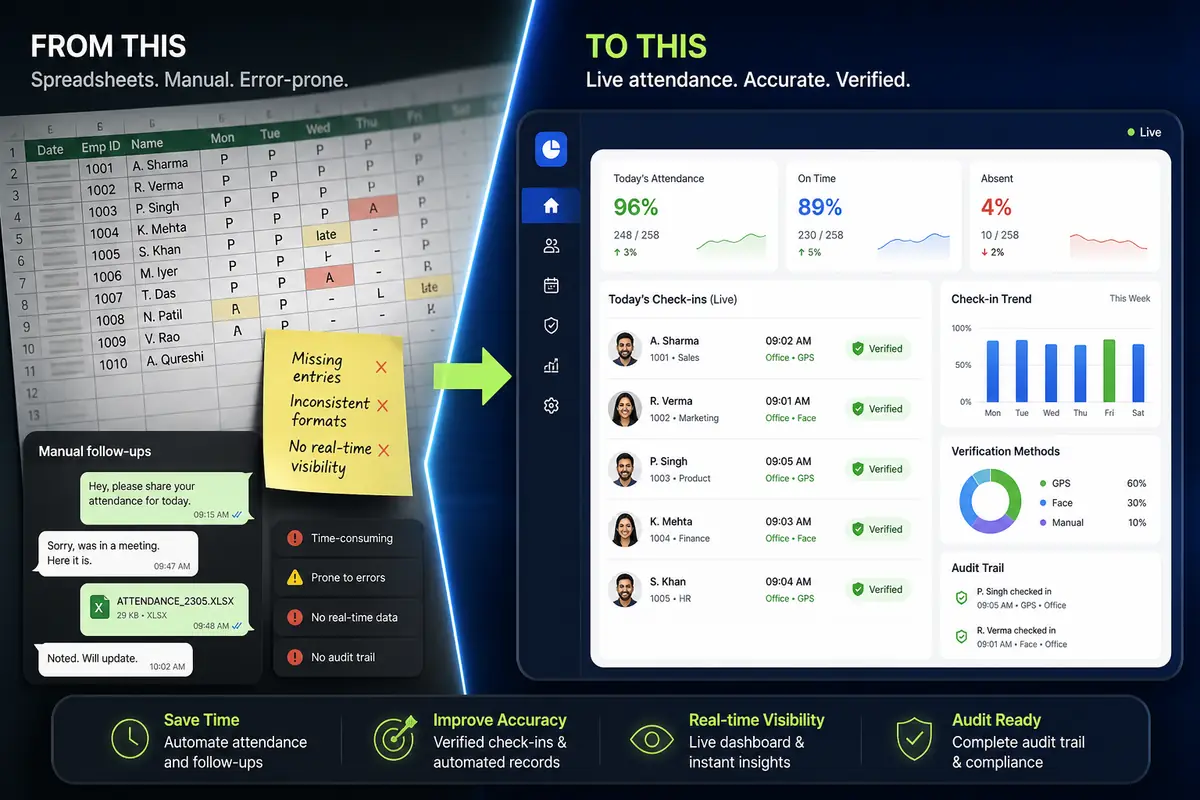
The bigger issue is not in the formulas. An Excel sheet records what someone typed, not what happened. Supervisors fill it at day end from memory, employees mark each other, and nobody can prove who was on site at 22:00. Corrections are silent. Multiple sites mean multiple files, merged manually. Every hour spent on the sheet is an hour that does not create better data.
An attendance app moves the capture to the point of presence: a face-recognition or selfie punch with GPS at the site, geofencing per location, offline capture that syncs later, and late-mark and grace rules that read from the assigned shift automatically. Attend Mitra produces the same payable-days, LOP and overtime figures the sheet does, but from timestamped records with an approval trail for corrections, and exports them to Excel or a payroll system. If you are weighing the change, Excel attendance sheet alternatives compares the options.
- Use hh:mm formats and MOD for midnight-crossing shifts
- Excel records what was typed, not who was actually present
- Corrections without an audit trail weaken your records in disputes
- Apps capture time, place and identity at the moment of attendance